Tutorial: Testnet Funding and Faucet
Step-by-step guide to funding your testnet account in the app and understanding testnet behavior.
Prerequisites
- Testnet account (wallet address)
- Access to Hypercall testnet environment
- Understanding of testnet vs production differences
Testnet Environment
Chain ID: 998 (Hyperliquid testnet)
Step 1: Request test tokens
- Tap "Get Test USDC"
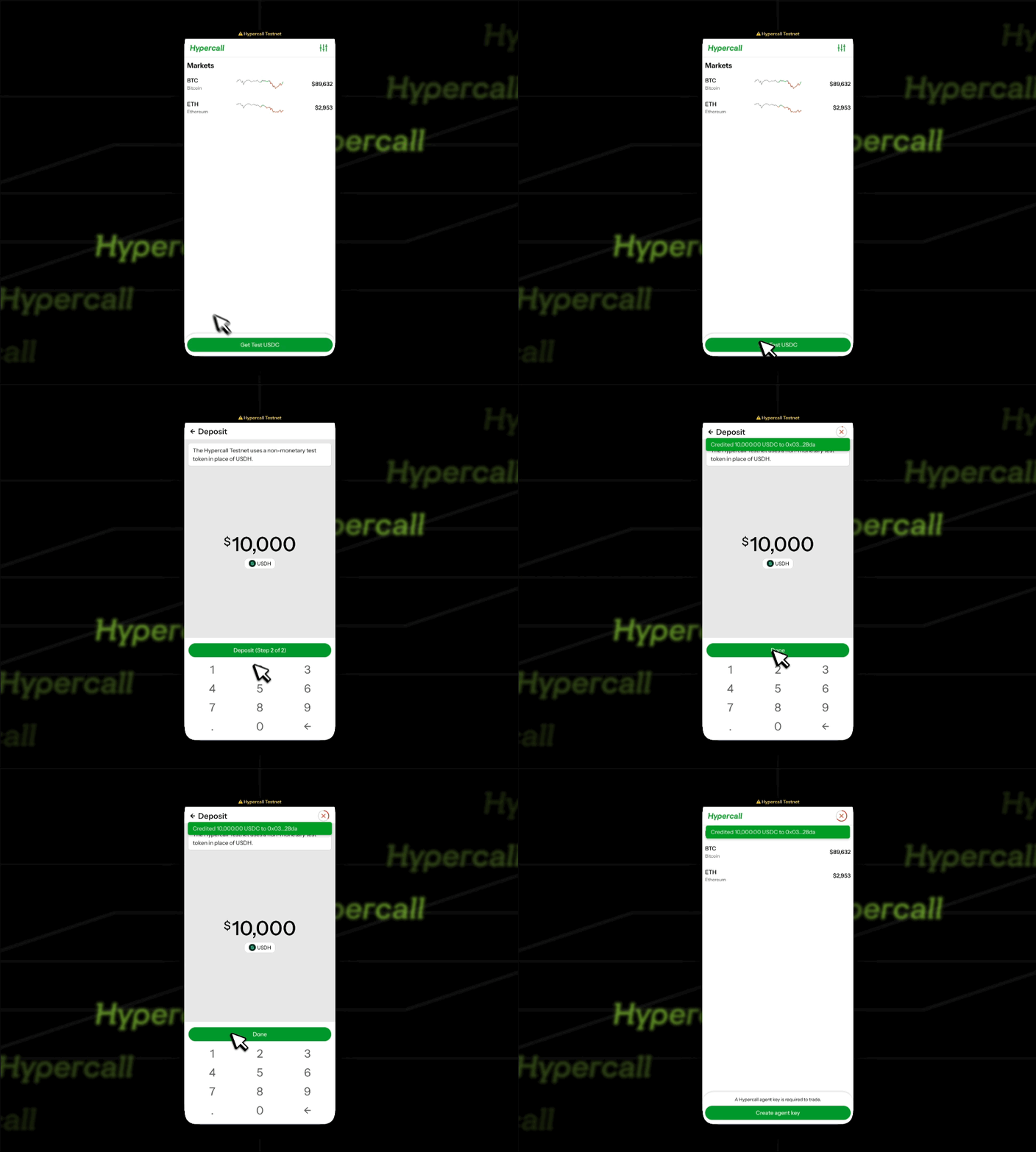
Step 2: Create agent key
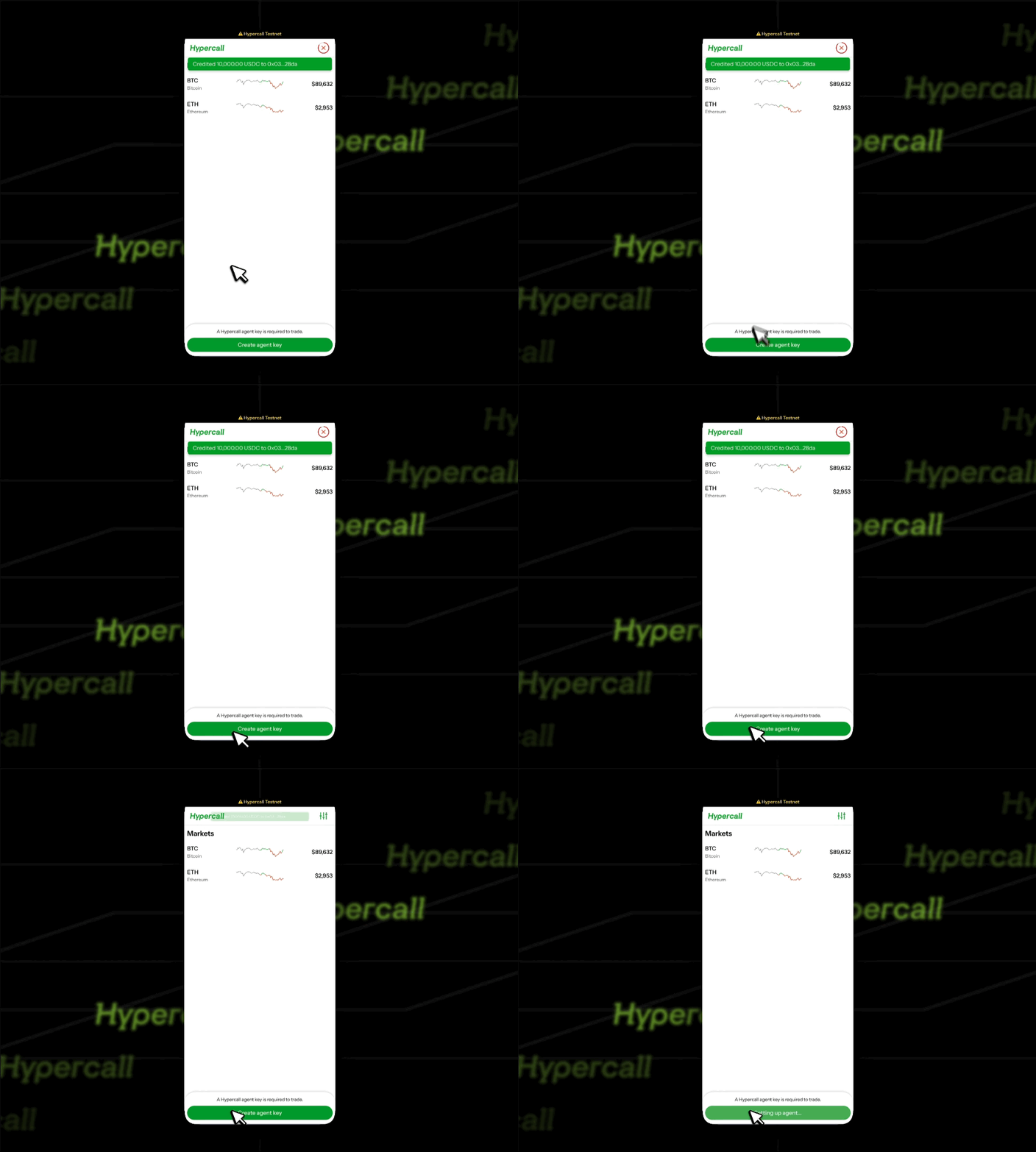
Step 3: Confirm funding & Browse Markets
- Confirm funding by looking at the bottom left corner of the main screen
- Tap underlying to open market pages
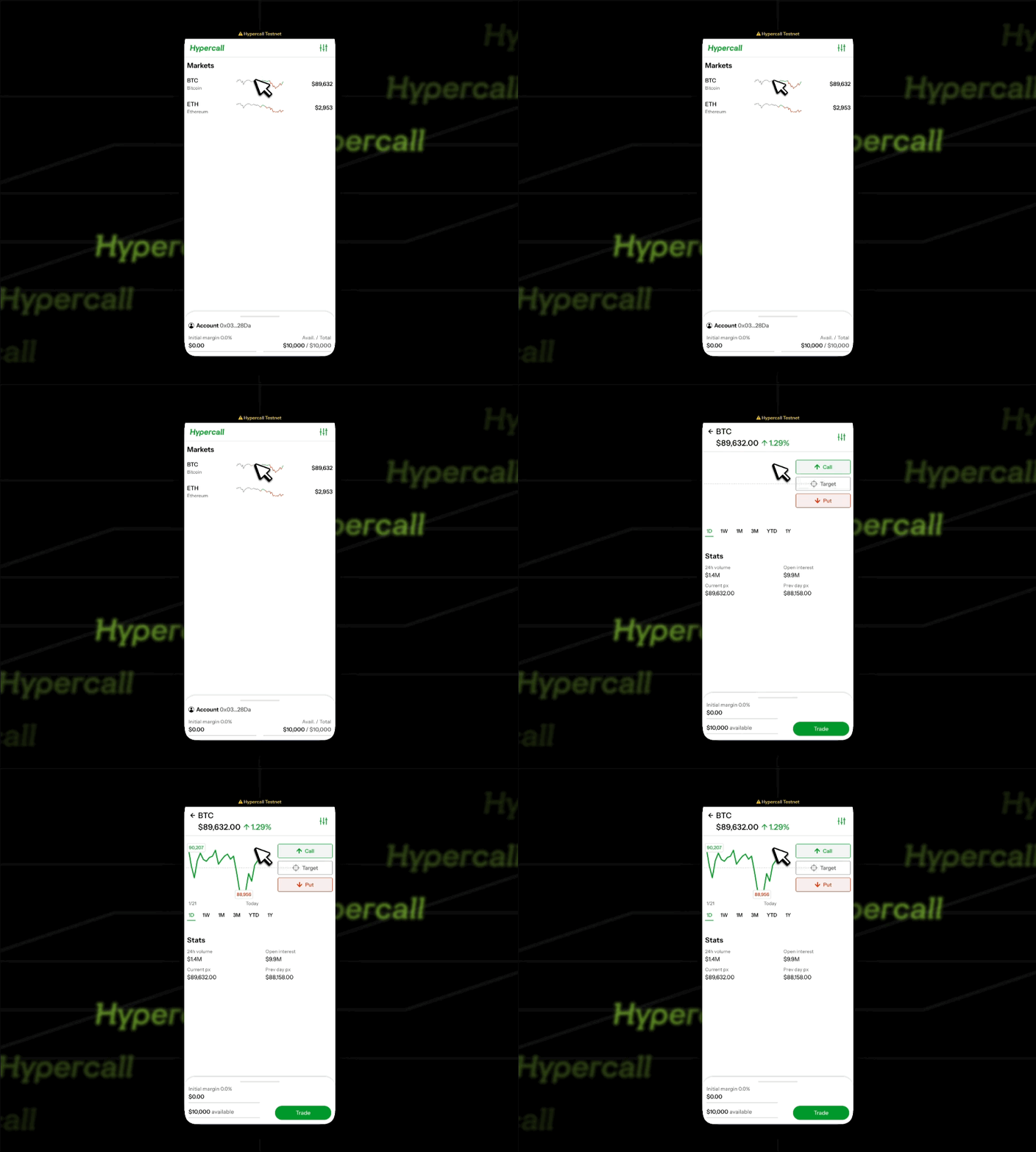
Step 4: You're ready to trade
- Place an order (see Tutorial: First Trade)
- Verify the order is accepted
- Check the portfolio after a fill to see updated cash balance
Step 5: Understand testnet limitations
Rate Limiting
Status: Rate limiting is not enforced on testnet.
Recommendation: Self-throttle to avoid abuse (10 to 50 requests per second recommended).
Faucet Deposit Cap
Each wallet can receive up to 100,000 cumulative test USDC from the faucet.
Requests that would exceed the cap are rejected. The cap does not reset.
Market Data
Source: Real Hyperliquid spot prices via WebSocket feed.
Behavior: Market data should be accurate, but testnet may have different liquidity than production.
Common Issues
"Account has no funds" on testnet
Cause: Account may not have been created yet, or balance was reset.
Fix:
- Reconnect your wallet in the app
- Reopen the wallet drawer to refresh the balance
- If balance is still zero, check if testnet default behavior changed
"API key required"
Cause: The app prompts for an API key before trading.
Fix: Follow the in-app prompt to create or connect an API key, then return to the wallet drawer.
"API key has no funds"
Cause: The API key is connected but the balance is still zero.
Fix: Complete the faucet flow above and refresh the wallet drawer.
"I want to reset my testnet account"
Use a different wallet address to create a new account.
"How do I get more testnet funds?"
Use the faucet flow above to request more test USDC.
See also
- Trade on App - Trading on the web interface
- Your First Trade - Step-by-step trading guide